Your public storefront
A walkthrough of what shoppers see at your /b/<slug>/ page — the cover banner with your logo, the items grid grouped into shop sections, recommendations, location and contact — and how to preview it before it goes live.
Where your store lives
Your public storefront sits at localfor.me/b/your-slug/. This is the page shoppers land on from search and from links you share. It runs in a clean, shop-first layout with a slim bar at the top to get back to LocalFor.Me.
What shoppers see
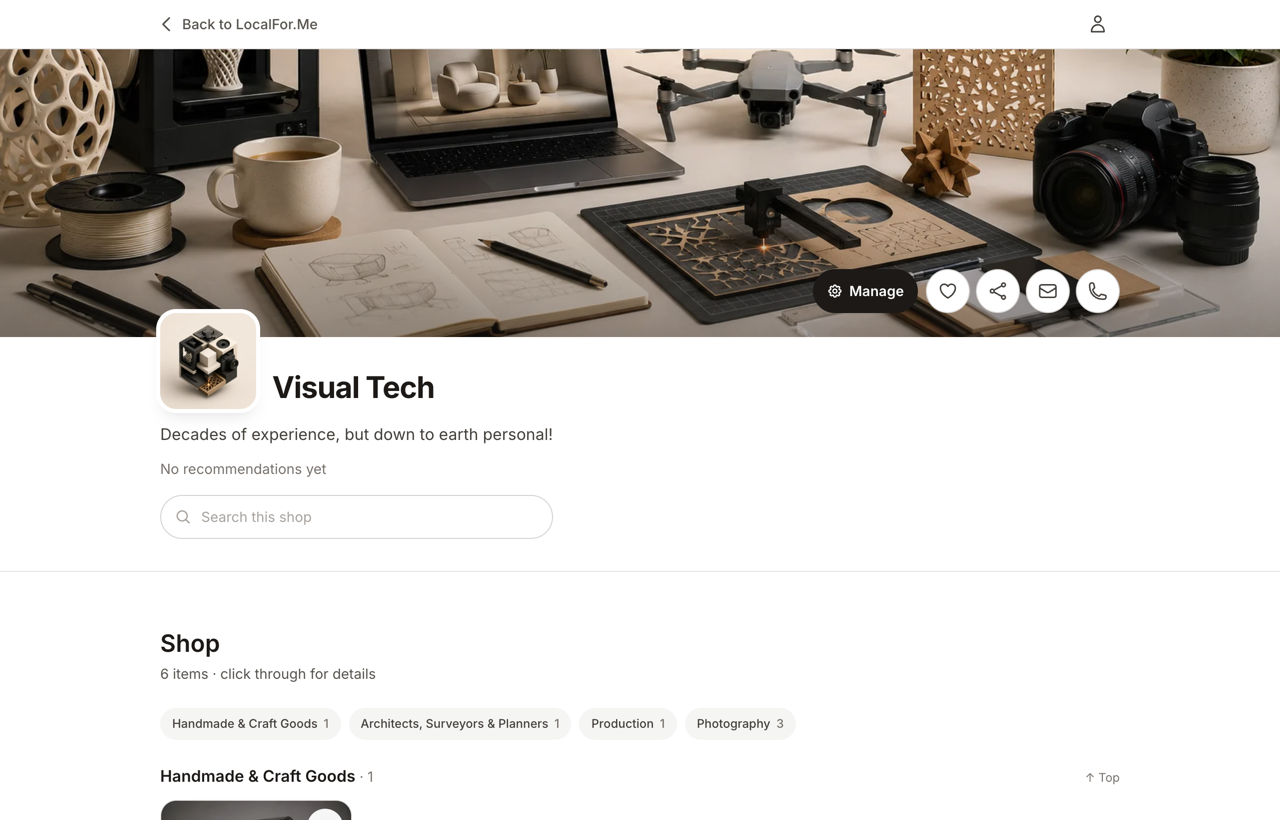
From top to bottom:
- Cover banner with your logo — your cover image fills the hero, anchored to the bottom, with your logo lifted up to straddle the bottom edge beside your business name and Verified badge (if you've been verified). Shoppers can click the banner to expand it full-screen.
- Action icons — a heart to favourite you, a share button, plus email and phone shortcuts if you've added those details. (You'll also see a black Manage button here when you're signed in as the owner or a manager.)
- Recommendations count — shown as Recommended by N, not star ratings, so the signal stays honest.
- Search this shop — a pill that lets visitors search your items by name or description.
- Primary action — a button to buy, visit your website or get in touch, depending on how your store is set up.
The items grid
Below the hero is your Shop. Active items render as cards in a grid:
- If you've created shop sections, items are grouped under those, in your chosen order. Anything not assigned lands in an Other group at the end.
- If you haven't set up sections, items fall back to grouping by their platform category.
- When you have more than one group, a row of category chips appears for quick jumping between sections.
Note: Only active items show, and items with a scheduled availability window only appear while that window is open.
Recommendations, location and contact
Further down, shoppers find your Recommendations (from people who actually bought from you — they expire after a set number of days to stay fresh), a Location card with a map and a Get directions link, and a Contact card with your phone and email. The Contact card always offers an in-site Message button (and there's a matching one in the banner) so shoppers can reach you even if you list no phone or email.
How to preview your store
You can view your store exactly as customers will, even before it's approved:
- From your dashboard, click Preview your store (top of any management page) or View public profile.
- Your store opens in a new tab.
While your listing isn't yet approved, you'll see an amber Owner preview banner reminding you that only you can see it right now, with a quick link to Add items while you wait for review. Once you're live, the banner disappears and the page is visible to everyone.
Tip: Previews are never cached for owners, so any edit you make shows up on your very next visit.