
Buying: basket and checkout
How to add products to a basket, check out securely with card, and what happens for enquiry-only items where you contact the seller instead.
Some businesses sell directly on LocalFor.Me with an on-site basket and card checkout. Others list their products as a catalogue and ask you to get in touch to buy. What you see on a product page depends on how that business is set up.
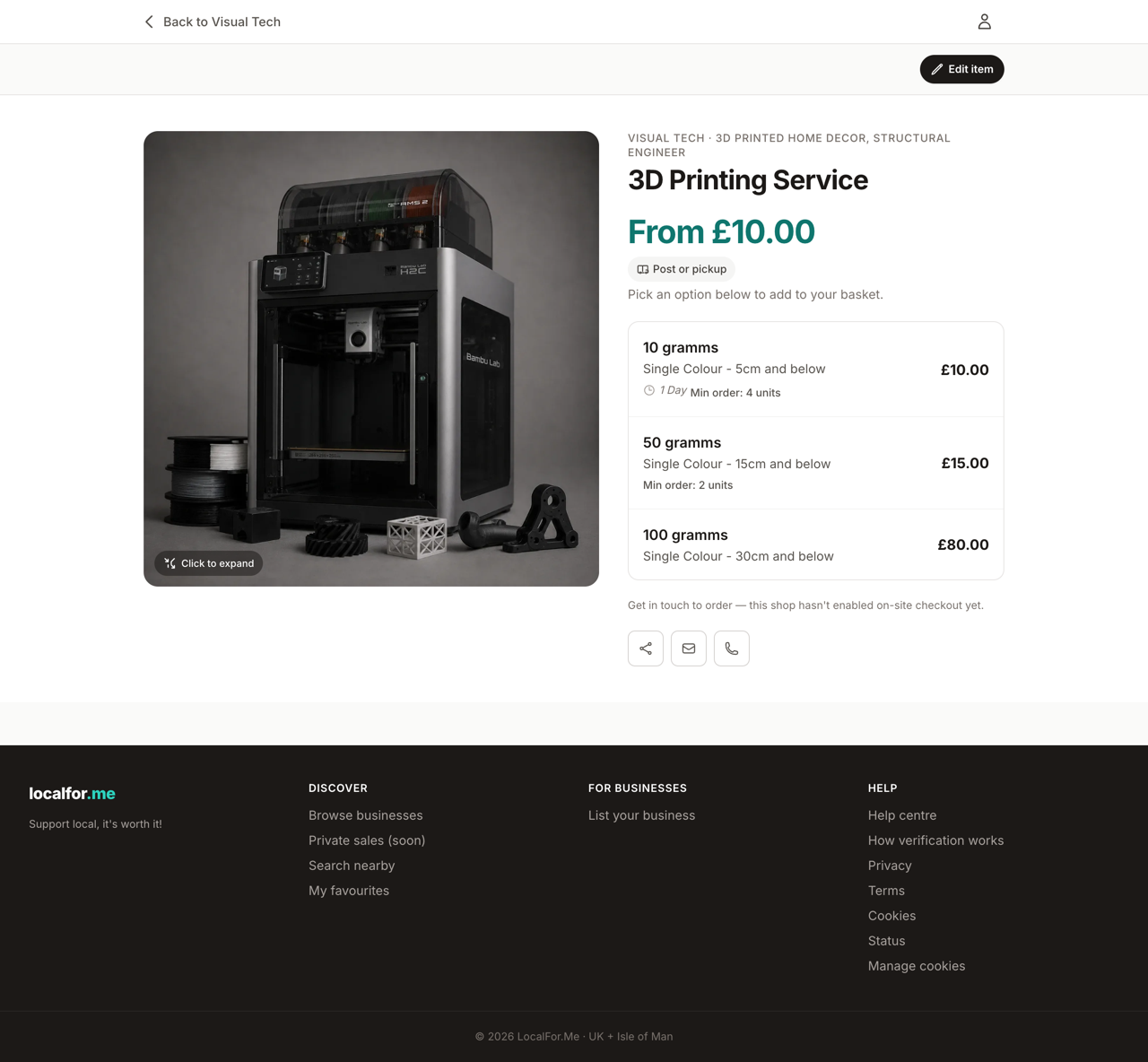
Adding to your basket
On a product page where the shop has on-site checkout enabled, you'll see an Add to basket button and a quantity stepper.
- If the product has options (for example Small / Medium / Large price tiers), each option has its own Add to basket button — click the one you want.
- Choose a quantity and add it. Some products or tiers have a minimum order quantity, shown next to the option.
- When you add something, a quick popup confirms it and shows your basket with a Checkout button. It tucks itself away after a few seconds, or you can dismiss it and keep browsing.
- You get one basket per business, because each shop checks out through its own payment account.
Saved something for another day? Use Save for later to move a basket line into your personal saved list at /me/saved/, then move it back to the basket whenever you like.
Checking out
From your basket, continue to checkout. You'll need to be signed in.
- Your basket is re-checked for stock and any minimum order quantities — if something's changed, you'll be sent back to fix it.
- Pay securely by card. We never store your card number — payment is handled by Stripe.
- On success you land on a confirmation page with your order details.
After checkout you can see the order under My orders — reach it any time from Orders in the account menu (your avatar, top-right) or at /me/orders/. From there you can download a PDF invoice once it's paid, and message the merchant about it. Every update to your order — confirmed, shipped, complete, refunded — is posted into that order's Messages thread (find it under Orders, or in Messages from the account menu); we also send a short email nudge linking back to it, so the details stay in your account rather than scattered across your inbox. Some businesses approve orders manually, in which case your card is held (authorised) and only charged once they accept — you can retract the request to release the hold while it's still awaiting approval.
Enquiry-only products
Where a business hasn't enabled on-site checkout, or a product is priced 'Enquire for price', there's no basket. Instead you'll see contact options:
- Enquire by email — opens an email to the seller with the product name filled in.
- Call — if the business has added a phone number.
- Visit website — for businesses that sell on their own site.
If a business hasn't added any contact details yet, the page will say so and point you to their website. Always agree price, payment and delivery directly with the seller for enquiry-only items.
Adding a note for the seller
Need to tell the seller something about your order — a gift message, delivery instructions, or a special request? You can leave a note for the seller:
- Right after you order, on the confirmation page, there's a Note for the seller box. Type your message and hit Add note.
- Any time afterwards, open the order from Account → Orders and edit the note there.
Your note is visible to the seller on their copy of the order, so they see it before they prepare and ship it. You can change or clear it whenever you like.