
Item status: draft, active, disabled & removing items
What each item status means, how to publish, how to temporarily hide an item, and how to delete, restore, and permanently clear items from the Removed items page.
Every item has a status that controls whether buyers can see it. There are four states, three of which you choose directly.
The four statuses
- Draft — you're still working on it. Visible only to you, not on your public shop. New items always start here.
- Active — live on your storefront and visible to buyers.
- Disabled — temporarily hidden (e.g. out of stock or paused). You can switch it back to Active without re-publishing.
- Deleted — an item you've removed. It's hidden from your public shop and your main Items list, but kept on the Removed items page (the "trash") so you can restore it. Permanent deletion is a separate step — see Emptying the trash below.
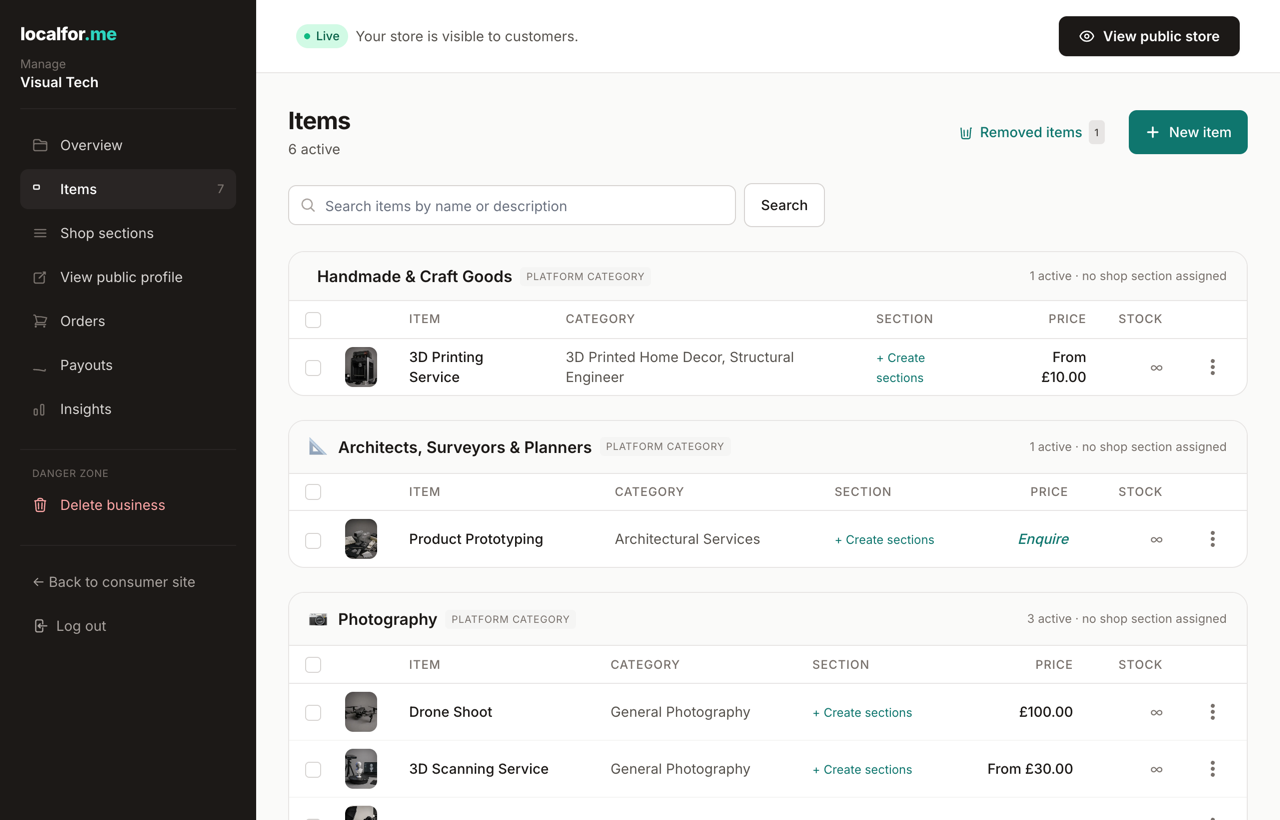
On your Items page, drafts, active items (grouped by section), and disabled items each appear in their own section, with a count of each at the top.
Publishing a draft
You can change status two ways:
- From the editor — set the State dropdown to Active and click Save.
- From the item page — when an item is a draft, click Publish to shop →.
Tip: Saving an item never publishes it on its own. A draft only goes live when you set it to Active or use Publish to shop.
Hiding an item temporarily
On the item page of an active item, click Disable (hide temporarily). The item leaves your public shop but stays in your dashboard under Hidden temporarily. When you're ready, open the item and click Re-enable to put it straight back to Active — no re-publishing needed.
Removing (deleting) items
Deleting is always reversible — the item moves to the Removed items trash, where you can restore it. Nothing is permanently destroyed until you empty the trash.
One item:
- Open the item page.
- Click Delete and confirm.
Several at once:
- On the Items page, tick the checkbox on each row you want to remove.
- A bulk-action bar slides up from the bottom showing how many are selected.
- Choose Delete from the action menu and click Apply, then confirm.
Deleted items disappear from your public shop and your main Items list. A Removed items link appears in the Items page header (with a count) whenever you have any.
Bulk actions for several items
The same bar can act on every ticked item at once — pick an action and click Apply:
- Enable — publishes the selected items (draft → active; re-enables disabled items).
- Disable — temporarily hides them, without deleting.
- Set shop section — moves them all into one of your shop sections, or choose — No section — to clear the section.
- Set fulfilment — overrides post / pickup / both / service per item, or choose Inherit shop default to go back to the shop-wide setting.
- Delete — sends them all to the Removed items trash (asks you to confirm first).
Your current search or filter is kept after applying an action, and any items that couldn't be changed (for example, already removed) are reported in the summary at the top of the page.
Emptying the trash
On the Removed items page, Empty trash permanently deletes the removed items that have no orders — these have no records to keep, so they (and their photos and options) are gone for good.
Items that have past orders are left in the trash on purpose: your order history links back to them, so they stay available (and restorable) for your records. The button shows how many items it will clear — e.g. Empty trash (3) — and is disabled when there's nothing to clear.
Warning: Emptying the trash can't be undone. If you might want an item back, Restore it instead.
Restoring a removed item
- Click Removed items in the Items page header.
- Find the item (shown struck-through).
- Open its menu and click Restore.
Restoring puts the item back to Active. If it pointed at a shop section that you've since deleted, it simply falls back to grouping by its platform category, so it won't go missing.
Warning: Deleting removes an item from sale immediately. If you only want to pause it for a while, use Disable instead so it's easy to bring back.