
"Tutorial: list your first product in 5 minutes"
A complete worked example — create a simple fixed-price product (a £45 bouquet), add photos, set fulfilment and stock, preview it, and publish. Everything a standard product needs, start to finish.
We'll list a single product at one price, end to end. Our example: a florist selling a Red roses bouquet for £45. Swap in your own product as you go.
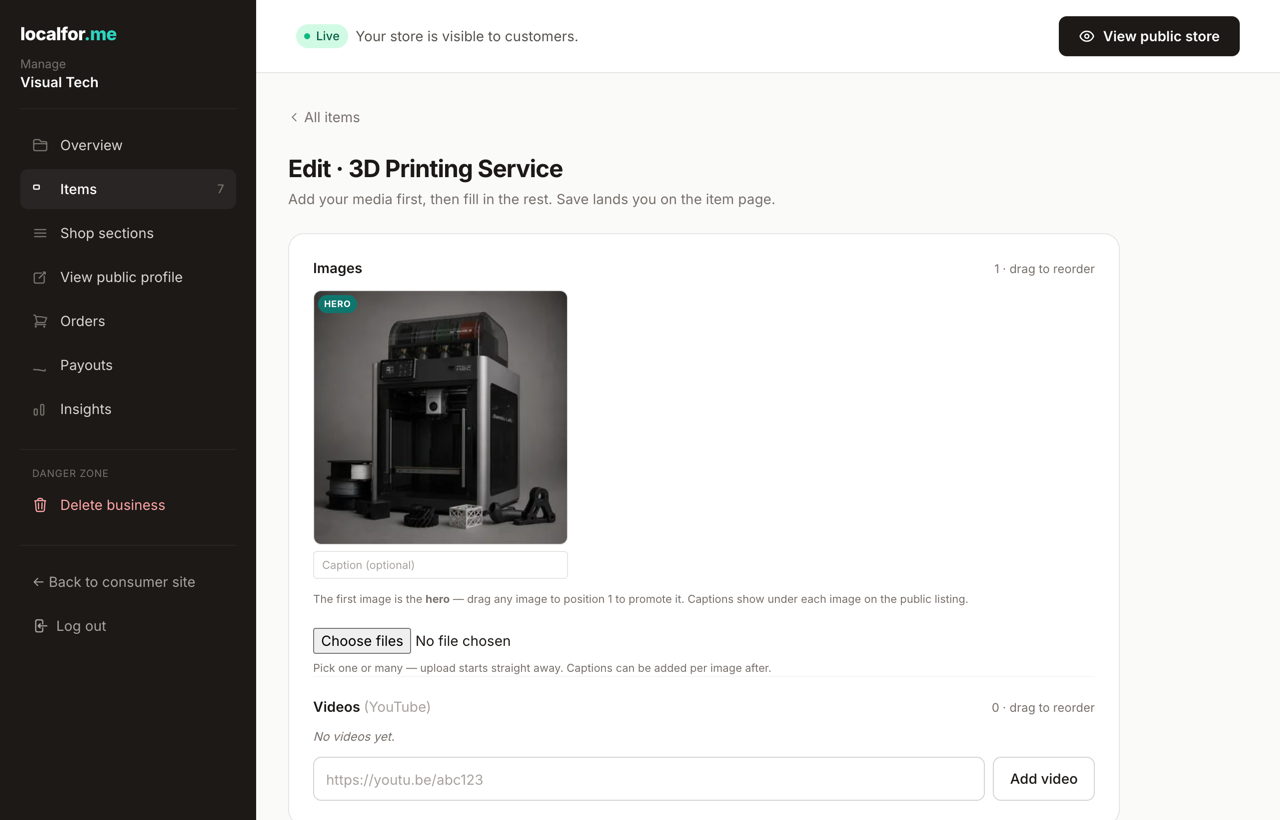
1. Create the draft
From your dashboard, open Items, then New item. This creates a Draft — invisible to shoppers, only you can see it — and drops you straight into the editor.
2. Name and describe it
- Name:
Red roses bouquet - Description:
Twelve fresh long-stem red roses, hand-tied with foliage and
  finished in kraft paper. Made to order the morning of dispatch.
Keep the description concrete — what's in it, how big it is, anything that sets it apart.
3. Add your photos
In the media area, choose Add photos and pick one or more images. The first photo is your hero — it's the thumbnail shoppers see on cards and search. Drag to reorder; the one in front wins. Good photos do more for sales than anything else on the page, so add three or four from different angles.
4. Set the price
In Pricing, you'll see one price row. For a simple product, fill in just the price:
- Price:
45.00
That's it — one price = one row. (Selling several sizes? That's the next tutorial.) Below the price you'll see a live breakdown — the Stripe fee, the listing fee, and what you keep.
5. Choose categories
Under Categories, add 1–5 platform categories so shoppers can filter to you. Search "bouquet" or browse Products → Flowers → Bouquets. Pick at least one, or the item won't go live.
6. Fulfilment and stock
- Fulfilment: leave it on Use business default, or override it for this
item —
Post only,Pickup only,Post or pickup, orService. - Stock (blank = unlimited): enter
50to track stock and have the item show Out of stock at zero, or leave it blank for unlimited.
7. Preview, then publish
At the bottom, set Listing status to Active ("Live on your shop — shoppers can see and buy this"), then Save. To check the shopper's view first, use Save & preview — it opens the public page in a new view; come back and flip to Active when you're happy.
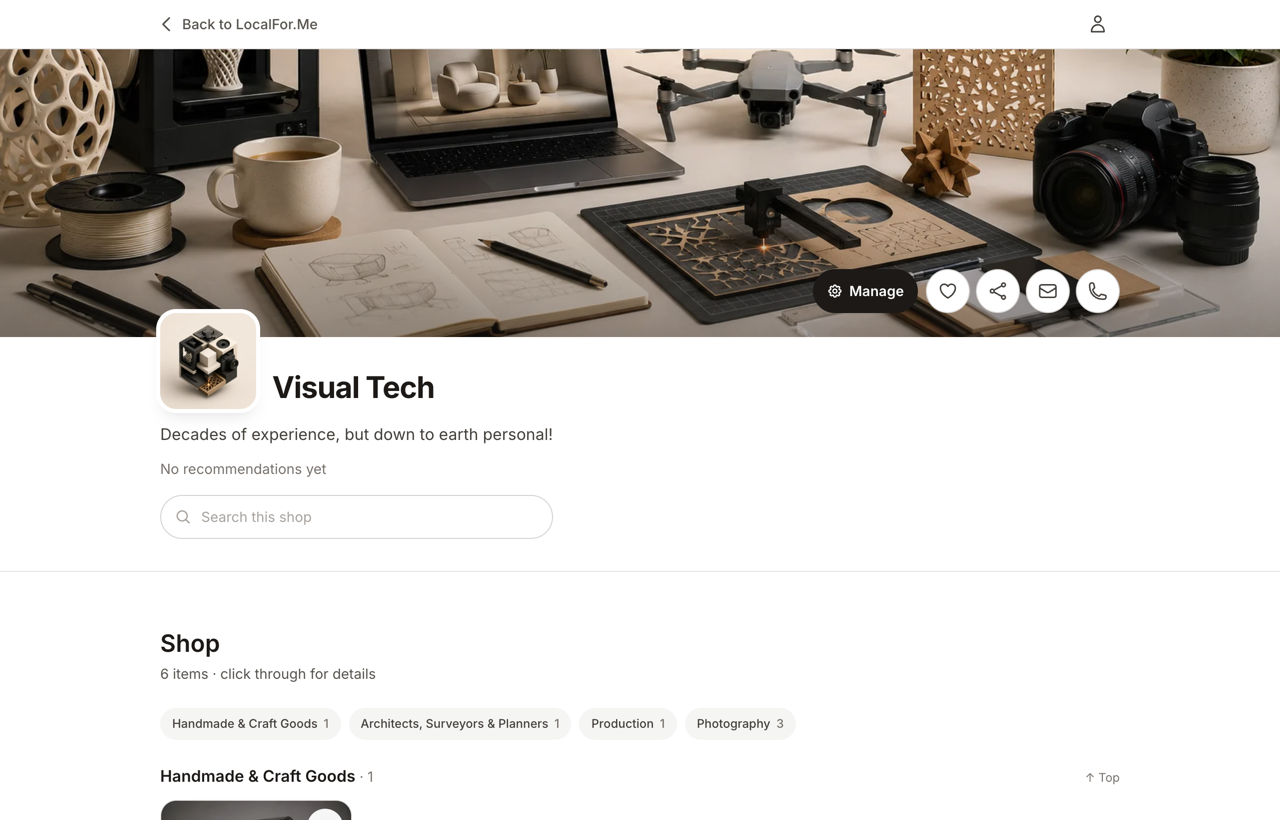
What the shopper sees
A card with your hero photo, the name, and £45.00. Tapping through shows the full description, the photo carousel, your fulfilment options, and an Add to basket button.
Done. Repeat New item for your next product — or if you sell the same thing in several sizes, follow Sell one product in several sizes next.